How can we help?
Step-by-step guides, no jargon. Search a word, or pick a topic.
Getting started
Install KairOS on a MacThere are two files: macOS 14 and later, or macOS 12 and 13.
Step by step
- On the website, click “Download for Mac”: the file that suits your Mac is offered.
- Open the .dmg file in your Downloads folder.
- Drag KairOS into the Applications folder.
- Open KairOS from Applications. If macOS shows a message on first launch, right-click KairOS, then “Open”.
Good to knowWhich version? Apple menu, then “About This Mac”. macOS 14 Sonoma or later: the standard file. Otherwise: the macOS 12 and 13 file.
 KairOS
 Applications
Install KairOS on WindowsWindows 10 and 11, installed in a few clicks.
Step by step
- Click “Download for Windows”.
- Open KairOS-Setup.exe from your Downloads folder.
- If Windows shows “Windows protected your PC”, click “More info”, then “Run anyway”.
- Click “Install”. KairOS opens by itself and starts with Windows.
Good to knowAfter that, KairOS updates itself, with no uninstalling or reinstalling.
Allow Full Disk AccessTo find caches, duplicates and large files, KairOS has to read your folders. The analysis stays on your Mac.
Step by step
- Open System Settings, then Privacy & Security.
- Choose “Full Disk Access”.
- Switch KairOS on in the list (add it with + if it is missing).
- Relaunch KairOS, then run the analysis again.
Good to knowWithout this access, some folders (Desktop, Documents, Downloads) cannot be read.
Run your first analysisSmart Scan finds in one click what clutters your computer.
Step by step
- Open “Smart Scan”, the first entry of the menu.
- Click the round “Scan” button.
- Look at the result: trash bins, junk files, installers.
- Click “Clean” to send everything to the Trash, or open a card to choose yourself.
Update KairOSThe gorilla tells you when a new version exists.
Step by step
- When a new version is available, the gorilla appears with an “Update” button.
- Click it: KairOS downloads, installs and restarts by itself.
- “Later” hides the reminder for 24 hours.
Good to knowYou can also download the latest version again from the Download page and install it over the old one.
Duplicates
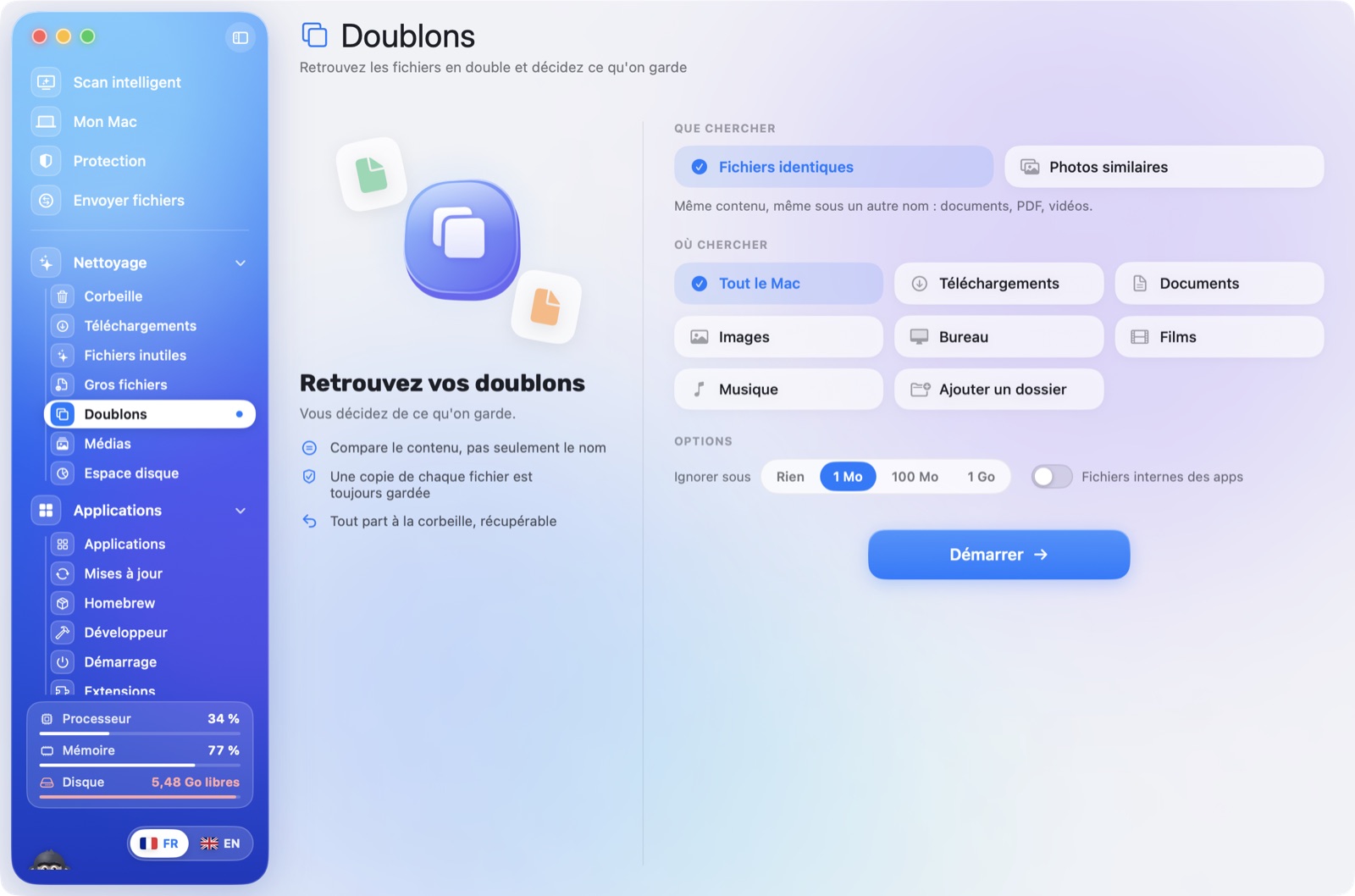
Search for duplicatesChoose what to look for and where, then click Start.
Step by step
- Open Cleanup › Duplicates.
- Choose “Identical files” (same content, even under another name) or “Similar photos”.
- Tick the folders to search, or “Whole Mac”. “Add a folder” adds more.
- Set “Ignore below” to skip small files.
- Click Start.
Good to knowAnalyses carry on if you change page: the percentage shows in the menu.
Understand the resultsEach duplicated file is a card; its copies are sorted by folder.
Step by step
- Each line is a file with several copies: name, number of copies, recoverable space.
- Click to open it: copies are grouped by folder, with a readable name (“Passports”, “Visits › May 2024”).
- The “Recommended” badge marks the suggested copy: the oldest, often the original.
- The ℹ︎ button gives the full path, the magnifier opens it in Finder, the thumbnail opens a preview.
Remove safelyYou decide, copy by copy. One copy always stays.
Step by step
- For each copy, choose Keep or Remove.
- One copy always stays: KairOS refuses to remove every copy of a file.
- Top menu: No selection, Smart selection, Keep the newest.
- Click “Review before removing”: a summary appears.
- Confirm: files go to the Trash and you can restore them.
Good to knowCopies in OneDrive, iCloud or Dropbox are never ticked automatically: removing them can also remove them from your other devices. Apps’ internal files are locked. Right before removing, KairOS checks every file again.
Similar photosKairOS recognises a photo even when resized or re-saved.
Step by step
- Choose “Similar photos” before starting.
- KairOS compares how photos look, not their names.
- The largest, so best quality, is recommended.
- Open the preview to compare before removing.
Large files and disk
Understand a large fileEach file says what it is, where it comes from and whether it can go.
Step by step
- Open Cleanup › Large Files and start the search.
- Each line shows the file type, its origin (your files, app, temporary files, installer, backup, developer tool, system) and a sentence of explanation.
- The risk badge: “Safe”, “Check first” or “Protected”.
- The origin chips filter the list, for example to see only what is safe.
Good to knowA “Protected” file belongs to the system: it cannot be selected.
Read the disk space barOne colour per kind of content, then three steps: Analyze, Free up, Check.
Step by step
- Open Cleanup › Disk Space.
- The colour bar shows what fills the disk: apps, documents, photos and media, developer, app data, trash, system.
- Hover a segment to see its size.
- Follow the three steps: Analyze, Free up space, Check the disk’s health.
Good to knowSizes are measured in the background, then remembered for the next launch. “System and other” is everything else.
- Apps
- Documents
- Media
- Developer
- System
- Free
My disk stays full after deletingOften the space has not been given back yet.
Step by step
- Empty the Trash: the space only comes back afterwards.
- In Disk Space, look at the “Hidden macOS backups” line: temporary Time Machine copies can hold space.
- Click “Delete them”: macOS asks for your password.
- Wait a few minutes: macOS also frees “recoverable” space by itself.
Downloads
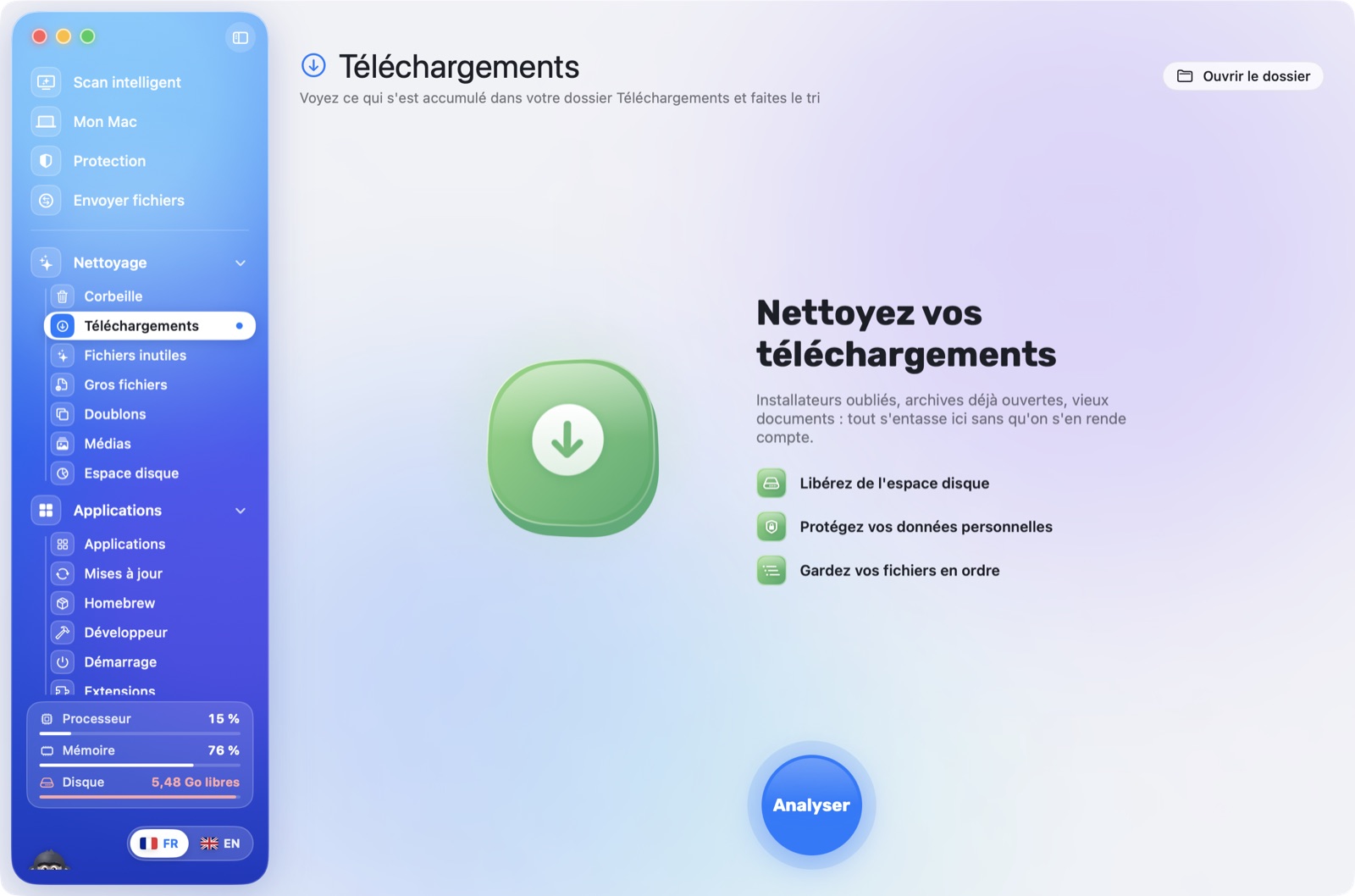
See and sort your downloadsA page dedicated to your Downloads folder.
Step by step
- Open Cleanup › Downloads, then Analyse.
- The chips filter by type, with their size.
- Sort by size, age or name, or search a file by name.
- Use quick select: installers, older than 30 days, older than 90 days.
- Click “Move to Trash”.
Good to knowOnly installers are ticked at first.
Tidy the folder automaticallyKairOS creates the folders and puts each file in its place. You can undo.
Step by step
- If at least 8 files lie loose, a message offers to tidy the folder.
- Click “Yes, tidy up”: KairOS creates Images, Documents, Videos, Audio, Archives, Installers, Other, and puts each file in it.
- An animation shows the files joining their folder. Wait a few seconds.
- At the end, “Undo tidying” puts everything back.
Good to knowOnly loose files move: your folders and apps stay where they are, downloads in progress are not touched, and no file is overwritten.
Analyses and protection
Change page during an analysisThe analysis carries on, and you find it when you come back.
Step by step
- Start an analysis, then go wherever you like: it carries on.
- The percentage shows in the left menu, next to the page concerned.
- Come back to the page: the result is there.
- One analysis at a time: if you start another, KairOS asks you to wait.
Good to knowThe percentage is an estimate, based on your last analysis.
Preview a file before decidingPictures, PDFs, documents and videos show without leaving KairOS.
Step by step
- Click the thumbnail, or the eye.
- The file shows large.
- “Open” opens it in its own app.
Good to knowArchives, installers and programs have no preview.
Protection and antivirusA quick or deep analysis, and a scheduler.
Step by step
- Open Protection, then “Run the analysis”.
- KairOS checks startup items, downloaded files and your system’s signatures.
- A threat that is found can be quarantined, then restored.
- The scheduler runs the analysis on the days and time you choose.
Good to knowKairOS adds to your system’s protections, it does not replace them.
What does KairOS receive?Your files stay with you.
Step by step
- Your files, photos and passwords stay on your computer.
- The app only sends anonymous statistics: model, version, pages opened.
- You can switch them off in the app.
- All the details are on the Privacy page.
Troubleshooting
A file will not deleteIt is protected, or KairOS lacks the access it needs.
Step by step
- Look at the badge: “Protected” or “App-managed” means KairOS does not offer it.
- Allow Full Disk Access (the “Getting started” guide).
- Close the app that uses the file, then try again.
- If the problem continues, write to us with the file name.
The analysis is slowThe first analysis of the whole computer can take several minutes.
Step by step
- Pick a specific folder rather than “Whole Mac”.
- Raise “Ignore below” to skip small files.
- Leave the window open: the analysis carries on even if you change page.
- Later analyses are faster.
A file transfer is interruptedBoth computers must see each other on the same network.
Step by step
- Check that both computers are on the same Wi-Fi.
- Check that the 6-digit code is the same on both screens.
- An interrupted transfer resumes where it stopped: start it again.
- On Windows, allow KairOS through the firewall if Windows asks.
The update does not appearIt is offered at launch, then every few hours.
Step by step
- Quit and reopen KairOS.
- If nothing appears, download the latest version from the Download page.
- Install it over the old one: your settings are kept.
Uninstall KairOSSimple, leaving no trace.
Step by step
- Mac: quit KairOS, then drag it from Applications to the Trash.
- Windows: open “Installed apps” and uninstall KairOS.
Another question?
Describe your problem, with your Mac or PC model: we will answer.
Contact us